FOR HERMES AGENT · ONE-TIME SETUP
Install the MyBots plugin first.
To recruit colleagues from the web, first install the MyBots plugin in Hermes Desktop. Follow the Git installation steps below, then choose your first AI colleague.
1. Install the MyBots plugin
Use Hermes Desktop v0.21.5 or later. Select This device · default as the installation target.
Screenshots show the full Hermes Desktop window in English. Follow the red numbers in order. Select an image to open it at full size.
Open Hermes → Settings → Plugins.
Click the Settings gear (1), select Plugins (2), then click Manage plugins → (3) at the top right.
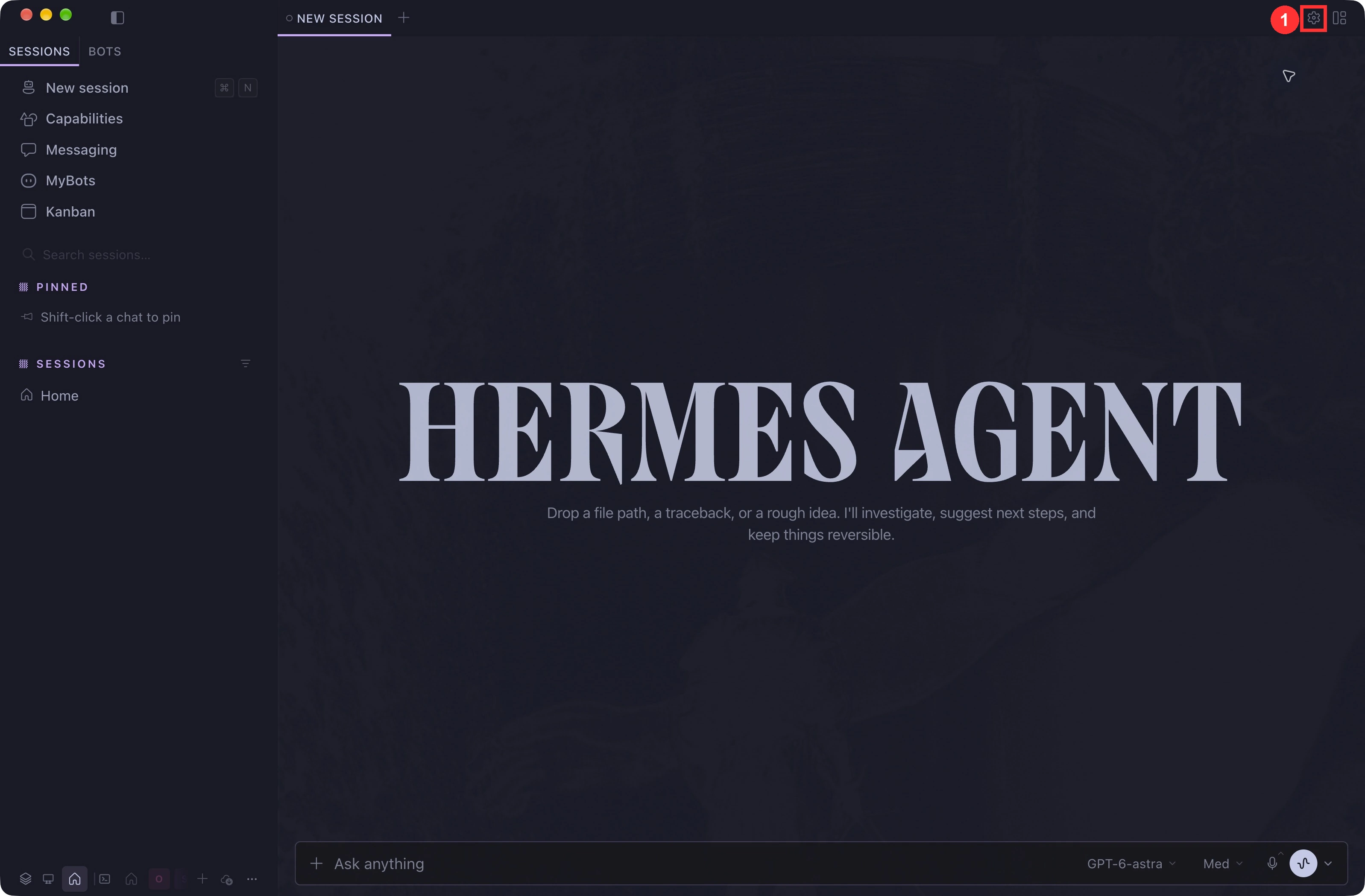
1. Open Settings using the gear at the top right. Open full-size screenshot ↗ 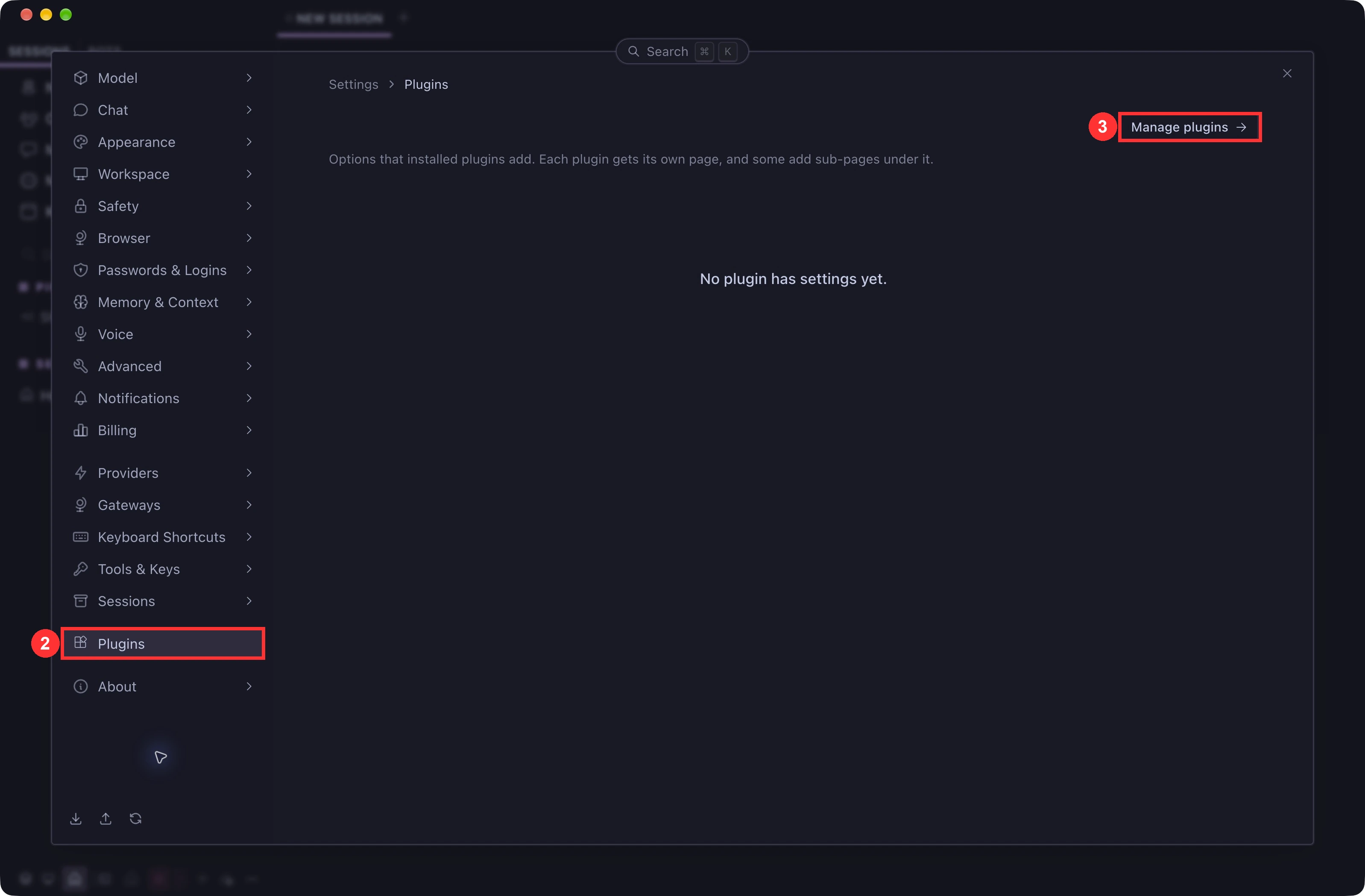
2. Select Plugins. 3. Click Manage plugins. Open full-size screenshot ↗ Click Install from Git.
At the top right of plugin management, click Install from Git to open the repository dialog.
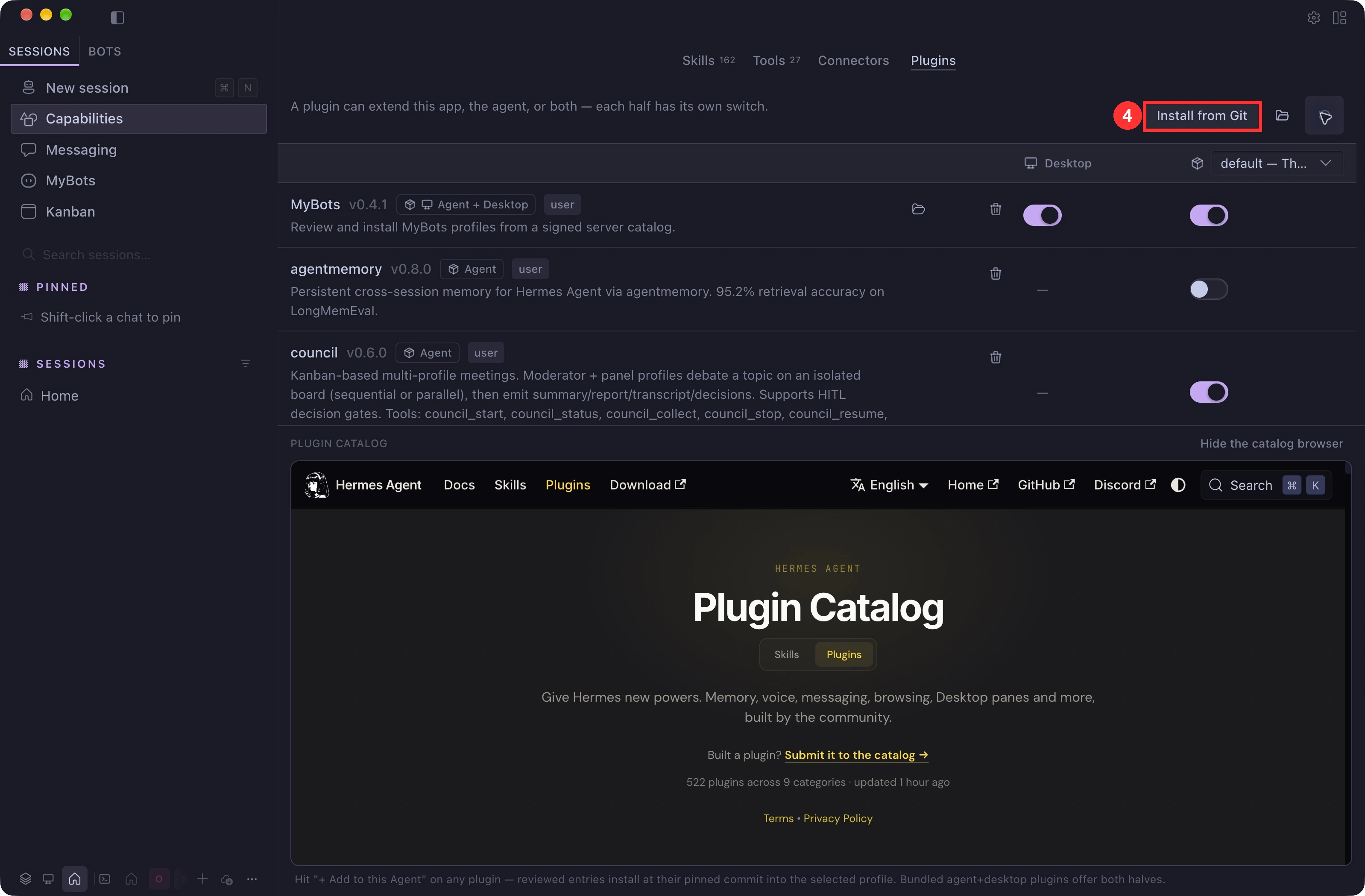
4. Click Install from Git at the top right of plugin management. Open full-size screenshot ↗ Paste the repository URL, then click Review repository.
Copy the URL below into the Repository field.
After entering the URL, click Review repository to review the components before installing.
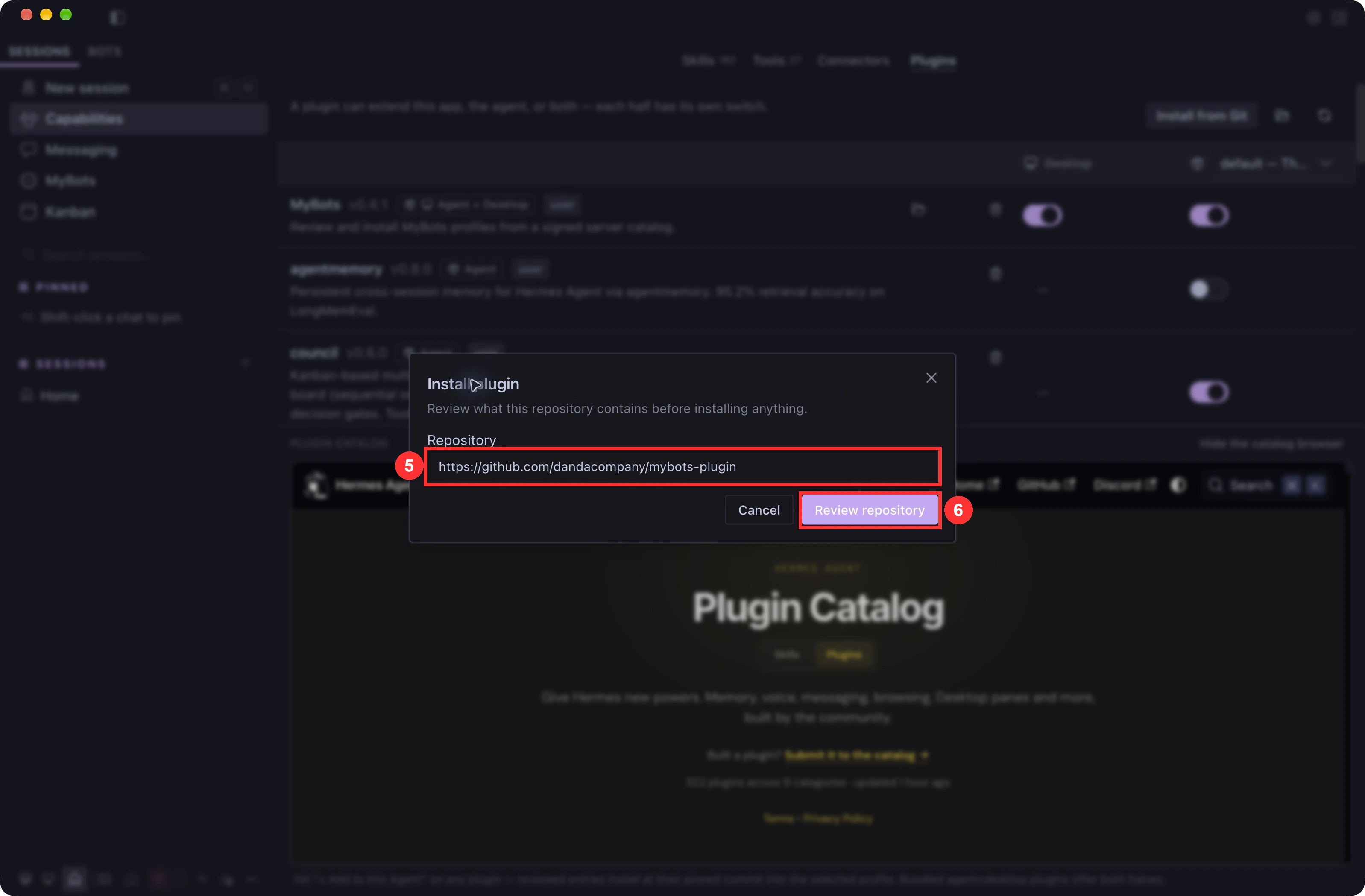
5. Paste the MyBots repository URL. 6. Click Review repository. Open full-size screenshot ↗ Review the target and components, then install.
Agent + Desktop Include both components and select the target This device · default for the agent. Review any dependency installation instructions, then continue.
Enable and open MyBots.
In the plugin list, enable both MyBots Agent and Desktop components. Then open MyBots from the left menu to browse bots.
On Hermes Desktop 0.22 or later, the Desktop part of MyBots is installed switched off. Open Capabilities → Plugins → MyBots and turn on the Desktop toggle. The “Agent + Desktop” label only names the package type; it does not mean both parts are on.
2. Recruit your first AI colleague
Press Recruit on a colleague you like.
Choose a colleague in the web gallery or MyBots in Hermes. Web recruit buttons open Hermes Desktop.
Review the components to install.
Soul and avatar are required. Select the available skills, MCP, plugins and recommended voice. Existing profiles are preserved.
Authenticate the services you need and start a conversation.
Choose and authenticate your conversation model in Hermes. Authenticate any external services and voice you use. Then personalize character, tone, background and working standards.
MyBots doesn’t appear in the left menu?
Open Capabilities → Plugins → MyBots and check the Desktop toggle. On Hermes Desktop 0.22 or later it starts off, and the “Agent + Desktop” label does not show whether it is on. MyBots appears in the left menu as soon as you turn it on, without restarting.
MyBots is visible, but the bot list won’t load?
Check that you are connected to This device · default and both MyBots Agent and Desktop components are enabled. In connection settings, confirm the server is https://mybots.work and follow any restart instructions from the app.
Browsing and installing bots does not require a MyBots creator API key. Connect one only to submit your own bots.
MyBots currently supports Hermes Agent. You cannot install these bots into other AI bot services.